> All in One 586: March 2026

Ads

Tuesday, March 31, 2026

Light Rain Early today!


With a high of F and a low of 34F. Currently, it's 47F and Showers in the Vicinity outside.

Current wind speeds: 9 from the East

Pollen: 0

Sunrise: March 31, 2026 at 06:37PM

Sunset: April 1, 2026 at 07:14AM

UV index: 0

Humidity: 48%

via https://ift.tt/t2UbcRy

April 1, 2026 at 10:02AM

What’s !important #8: Light/Dark Favicons, @mixin, object-view-box, and More

Short n’ sweet but ever so neat, this issue covers light/dark favicons, @mixin, anchor-interpolated morphing, object-view-box, new web features, and more.

SVG favicons that respect the color scheme

I’m a sucker for colorful logos with about 50% lightness that look awesome on light and dark backgrounds, but not all logos can be like that. Paweł Grzybek showed us how to implement SVG favicons that respect the color scheme, enabling us to display favicons conditionally, but the behavior isn’t consistent across web browsers. It’s an interesting read and there appears to be a campaign to get it working correctly.

And once that happens, here’s a skeuomorphic egg-themed CSS toggle that I found last week. Perfect timing, honestly.

Skeuomorphic Egg Toggle Switch [HTML + CSS + JS] Organic mechanics. Complex box-shadow layering and border-radius manipulation. Tactile feedback through depth. Source code: freefrontend.com/code/skeuomo…

[image or embed]

— FreeFrontend (@freefrontend.bsky.social) Mar 26, 2026 at 11:42

Help the CSS WG shape @mixin

It seems that @mixin is taking a step forward. Lea Verou showed us a code snippet and asked what we think of it.

🚨 Want mixins in CSS? Help the CSS WG by telling us what feels natural to you! Look at the code in the screenshot. What resulting widths would *you* find least surprising for each of div, div > h2, div + p? Polls: ┣ Github: github.com/LeaVerou/blo… ┗ Mastodon: front-end.social/@leaverou/11…

[image or embed]

— Lea Verou, PhD (@lea.verou.me) Mar 26, 2026 at 23:29

Anchor-interpolated morphing tutorial

Chris Coyier showed us how to build an image gallery using popovers and something called AIM (Anchor-Interpolated Morphing). I’m only hearing about this now but Adam Argyle talked about AIM back in January. It’s not a new CSS feature but rather the idea of animating something from its starting position to an anchored position. Don’t miss this one.

Also, do you happen to remember Temani’s demo that I shared a few weeks ago? Well, Frontend Masters have published the tutorial for that too!

Remember object-view-box? Me neither

CSS object-view-box allows an element to be zoomed, cropped, or framed in a way that resembles how SVG’s viewBox works, but since Chrome implemented it back in August 2022, there’s been no mention of it. To be honest, I don’t remember it at all, which is a shame because it sounds useful. In a Bluesky thread, Victor Ponamariov explains how object-view-box works. Hopefully, Safari and Firefox implement it soon.

Wouldn't it be great to have native image cropping in CSS? It actually exists: object-view-box.

[image or embed]

— Victor (@vpon.me) Mar 24, 2026 at 16:15

corner-shape for everyday UI elements

Much has been said about CSS corner-shape, by us and the wider web dev community, despite only being supported by Chrome for now. It’s such a fun feature, offering so many ways to turn boxes into interesting shapes, but Brecht De Ruyte’s corner-shape article focuses more on how we might use corner-shape for everyday UI elements/components.

An interface design titled Buttons and Tags showcasing various UI component shapes using the corner-shape property. The display includes a row of solid buttons in different colors labeled Bevel, Superellipse, Squircle, Notch, and Scoop, followed by a set of outlined buttons and a series of decorative status tags like Shipped and Pending. Below these are directional tags with arrow shapes and a row of notification badges featuring icons for a bell, message, and alert with numerical counters.
Source: Smashing Magazine.

The Layout Maestro

Ahmad Shadeed’s course — The Layout Maestro — teaches you how to plan and build CSS layouts using modern techniques. Plus, you can learn how to master building the bones of websites using an extended trial of the web development browser, Polypane, which comes free with the course.

A bento grid layout featuring multiple rounded rectangular panels in a very light lavender hue. The central panel displays a logo consisting of a purple stylized window icon and the text The Layout Maestro in black and purple sans-serif font, accented by small purple sparkles. The surrounding empty panels vary in size and aspect ratio, creating a clean and modern asymmetrical composition against a white background.
Source: The Layout Maestro.

New web platform features

Firefox and Safari shipped new features (none baseline, sadly):

Also, Bramus said that Chrome 148 will have at-rule feature queries, while Chrome 148 and Firefox 150 will allow background-image to support light-dark(). In any case, there’s a new website called BaseWatch that tracks baseline status for all of these CSS features.

Ciao!


What’s !important #8: Light/Dark Favicons, @mixin, object-view-box, and More originally published on CSS-Tricks, which is part of the DigitalOcean family. You should get the newsletter.


from CSS-Tricks https://ift.tt/Fb3Z8EW
via IFTTT

Monday, March 30, 2026

Partly Cloudy today!


With a high of F and a low of 41F. Currently, it's 57F and Clear outside.

Current wind speeds: 6 from the South

Pollen: 0

Sunrise: March 30, 2026 at 06:38PM

Sunset: March 31, 2026 at 07:13AM

UV index: 0

Humidity: 26%

via https://ift.tt/M6NU5Iv

March 31, 2026 at 10:02AM

Form Automation Tips for Happier User and Clients

I deployed a contact form that last month that, in my opinion, was well executed. It had all the right semantics, seamless validation, and great keyboard support. You know, all of the features you’d want in your portfolio.

But… a mere two weeks after deployment, my client called. We lost a referral because it was sitting in your inbox over the weekend.

The form worked perfectly. The workflow didn’t.

The Problem Nobody Talks About

That gap between “the form works” and “the business works” is something we don’t really tend to discuss much as front-enders. We focus a great deal on user experience, validation methods, and accessibility, yet we overlook what the data does once it leaves our control. That is exactly where things start to fall apart in the real world.

Here’s what I learned from that experience that would have made for a much better form component.

Why “Send Email on Submit” Fails

The pattern we all use looks something like this:

fetch('/api/contact', {
  method: 'POST',
  body: JSON.stringify(formData)
})

// Email gets sent and we call it done

I have seen duplicate submissions cause confusion, specifically when working with CRM systems, like Salesforce. For example, I have encountered inconsistent formatting that hinders automated imports. I have also experienced weekend queries that were overlooked until Monday morning. I have debugged queries where copying and pasting lost decimal places for quotes. There have also been “required” fields for which “required” was simply a misleading label.

I had an epiphany: the reality was that having a working form was just the starting line, not the end. The fact is that the email is not a notification; rather, it’s a handoff. If it’s treated merely as a notification, it puts us into a bottleneck with our own code. In fact, Litmus, as shown in their 2025 State of Email Marketing Report (sign-up required), found inbox-based workflows result in lagging follow-ups, particularly with sales teams that rely on lead generation.

Detailing a broken workflow for a submitted form. User submits form, email reaches inbox, manual spreadsheet entries, formatting errors, and delays.

Designing Forms for Automation

The bottom line is that front-end decisions directly influence back-end automation. In recent research from HubSpot, data at the front-end stage (i.e., the user interaction) makes or breaks what is coming next.

These are the practical design decisions that changed how I build forms:

Required vs. Optional Fields

Ask yourself: What does the business rely on the data for? Are phone calls the primary method for following up with a new lead? Then let’s make that field required. Is the lead’s professional title a crucial context for following up? If not, make it optional. This takes some interpersonal collaboration before we even begin marking up code.

For example, I made an incorrect assumption that a phone number field was an optional piece of information, but the CRM required it. The result? My submissions were invalidated and the CRM flat-out rejected them.

Now I know to drive my coding decisions from a business process perspective, not just my assumptions about what the user experience ought to be.

Normalize Data Early

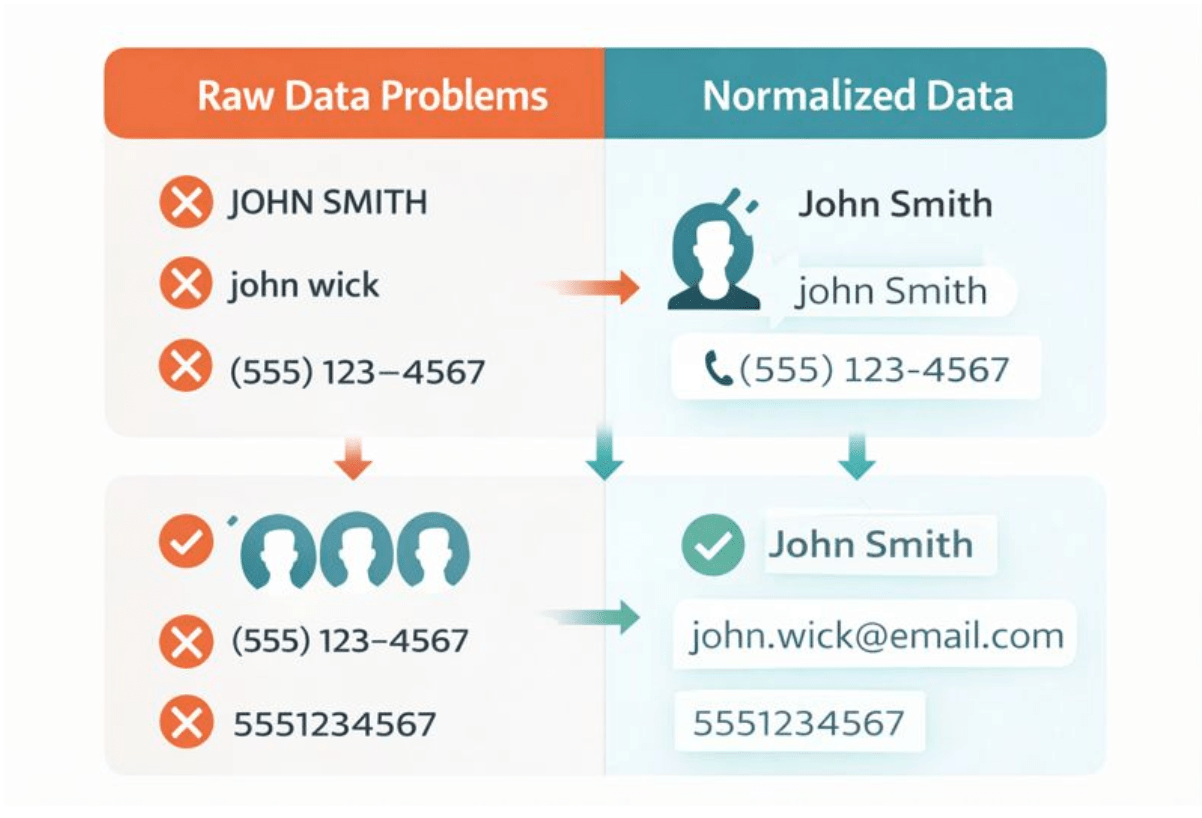
Does the data need to be formatted in a specific way once it’s submitted? It’s a good idea to ensure that some data, like phone numbers, are formatted consistently so that the person on the receiving has an easier time scanning the information. Same goes when it comes to trimming whitespace and title casing.

Why? Downstream tools are dumb. They are utterly unable to make the correlation that “John Wick” and “john wick” are related submissions. I once watched a client manually clean up 200 CRM entries because inconsistent casing had created duplicate records. That’s the kind of pain that five minutes of front-end code prevents.

Prevent Duplicate Entries From the Front End

Something as simple as disabling the Submit button on click can save the headache of sifting through duplicative submissions. Show clear “submission states” like a loading indicator that an action is being processed. Store a flag that a submission is in progress.

Why? Duplicate CRM entries cost real money to clean up. Impatient users on slow networks will absolutely click that button multiple times if you let them.

Success and Error States That Matter

What should the user know once the form is submitted? I think it’s super common to do some sort of default “Thanks!” on a successful submission, but how much context does that really provide? Where did the submission go? When will the team follow up? Are there resources to check out in the meantime? That’s all valuable context that not only sets expectations for the lead, but gives the team a leg up when following up.

Error messages should help the business, too. Like, if we’re dealing with a duplicate submission, it’s way more helpful to say something like, “This email is already in our system” than some generic “Something went wrong” message.

Comparing two types of submitted raw data. Formatting problems displayed on the left and properly formatted data on the right.

A Better Workflow

So, how exactly would I approach form automation next time? Here are the crucial things I missed last time that I’ll be sure to hit in the future.

Better Validation Before Submission

Instead of simply checking if fields exist:

const isValid = email && name && message;

Check if they’re actually usable:

function validateForAutomation(data) {
  return {
    email: /^[^\s@]+@[^\s@]+\.[^\s@]+$/.test(data.email),
    name: data.name.trim().length >= 2,
    phone: !data.phone || /^\d{10,}$/.test(data.phone.replace(/\D/g, ''))
  };
}

Why this matters: CRMs will reject malformed emails. Your error handling should catch this before the user clicks submit, not after they’ve waited two seconds for a server response.

At the same time, it’s worth noting that the phone validation here covers common cases, but is not bulletproof for things like international formats. For production use, consider a library like libphonenumber for comprehensive validation.

Consistent Formatting

Format things before it sends rather than assuming it will be handled on the back end:

function normalizeFormData(data) {
  return {
    name: data.name.trim()
      .split(' ')
      .map(word => word.charAt(0).toUpperCase() + word.slice(1).toLowerCase())
      .join(' '),
    email: data.email.trim().toLowerCase(),
    phone: data.phone.replace(/\D/g, ''), // Strip to digits
    message: data.message.trim()
  };
}

Why I do this: Again, I’ve seen a client manually fix over 200 CRM entries because “JOHN SMITH” and “john smith” created duplicate records. Fixing this takes five minutes to write and saves hours downstream.

There’s a caveat to this specific approach. This name-splitting logic will trip up on single names, hyphenated surnames, and edge cases like “McDonald” or names with multiple spaces. If you need rock-solid name handling, consider asking for separate first name and last name fields instead.

Prevent Double Submissions

We can do that by disabling the Submit button on click:

let submitting = false;
  async function handleSubmit(e) {
    e.preventDefault();
    if (submitting) return;
    submitting = true;

const button = e.target.querySelector('button[type="submit"]');
button.disabled = true;
button.textContent = 'Sending...';

try {
  await sendFormData();
    // Success handling
  } catch (error) {
    submitting = false; // Allow retry on error
    button.disabled = false;
    button.textContent = 'Send Message';
  }
}

Why this pattern works: Impatient users double-click. Slow networks make them click again. Without this guard, you’re creating duplicate leads that cost real money to clean up.

Structuring Data for Automation

Instead of this:

const formData = new FormData(form);

Be sure to structure the data:

const structuredData = {
  contact: {
    firstName: formData.get('name').split(' ')[0],
    lastName: formData.get('name').split(' ').slice(1).join(' '),
    email: formData.get('email'),
    phone: formData.get('phone')
  },
  inquiry: {
    message: formData.get('message'),
    source: 'website_contact_form',
    timestamp: new Date().toISOString(),
    urgency: formData.get('urgent') ? 'high' : 'normal'
  }
};

Why structured data matters: Tools like Zapier, Make, and even custom webhooks expect it. When you send a flat object, someone has to write logic to parse it. When you send it pre-structured, automation “just works.” This mirrors Zapier’s own recommendations for building more reliable, maintainable workflows rather than fragile single-step “simple zaps.”

Watch How Zapier Works (YouTube) to see what happens after your form submits.

Comparing flat JSON data on the left with properly structured JSON data.

Care About What Happens After Submit

An ideal flow would be:

  1. User submits form 
  2. Data arrives at your endpoint (or form service) 
  3. Automatically creates CRM contact 
  4. A Slack/Discord notification is sent to the sales team 
  5. A follow-up sequence is triggered 
  6. Data is logged in a spreadsheet for reporting

Your choices for the front end make this possible:

  • Consistency in formatting = Successful imports in CRM 
  • Structured data = Can be automatically populated using automation tools 
  • De-duplication = No messy cleanup tasks required 
  • Validation = Less “invalid entry” errors

Actual experience from my own work: After re-structuring a lead quote form, my client’s automated quote success rate increased from 60% to 98%. The change? Instead of sending { "amount": "$1,500.00"}, I now send { "amount": 1500}. Their Zapier integration couldn’t parse the currency symbol.

Showing the change in rate of success after implementation automation, from 60% to 98% with an example of a parsed error and an accepted value below based on formatting money in dollars versus a raw number.

My Set of Best Practices for Form Submissions

These lessons have taught me the following about form design:

  1. Ask about the workflow early. “What happens after someone fills this out?” needs to be the very first question to ask. This surfaces exactly what really needs to go where, what data needs to come in with a specific format, and integrations to use. 
  2. Test with Real Data. I am also using my own input to fill out forms with extraneous spaces and strange character strings, such as mobile phone numbers and bad uppercase and lowercase letter strings. You might be surprised by the number of edge cases that can come about if you try inputting “JOHN SMITH ” instead of “John Smith.” 
  3. Add timestamp and source. It makes sense to design it into the system, even though it doesn’t necessarily seem to be necessary. Six months into the future, it’s going to be helpful to know when it was received. 
  4. Make it redundant. Trigger an email and a webhook. When sending via email, it often goes silent, and you won’t realize it until someone asks, “Did you get that message we sent you?”
  5. Over-communicate success. Setting the lead’s expectations is crucial to a more delightful experience. “Your message has been sent. Sarah from sales will answer within 24 hours.” is much better than a plain old “Success!”

The Real Finish Line

This is what I now advise other developers: “Your job doesn’t stop when a form posts without errors. Your job doesn’t stop until you have confidence that your business can act upon this form submission.”

That means:

  • No “copy paste” allowed 
  • No “I’ll check my email later” 
  • No duplicate entries to clean up 
  • No formatting fixes needed

The code itself is not all that difficult. The switch in attitude comes from understanding that a form is actually part of a larger system and not a standalone object. Once you think about forms this way, you think differently about them in terms of planning, validation, and data.

The next time you’re putting together a form, ask yourself: What happens when this data goes out of my hands? Answering that question makes you a better front-end developer.

The following CodePen demo is a side-by-side comparison of a standard form versus an automation-ready form. Both look identical to users, but the console output shows the dramatic difference in data quality.

References & Further Reading


Form Automation Tips for Happier User and Clients originally published on CSS-Tricks, which is part of the DigitalOcean family. You should get the newsletter.


from CSS-Tricks https://ift.tt/4xj0K8u
via IFTTT

Sunday, March 29, 2026

Partly Cloudy today!


With a high of F and a low of 45F. Currently, it's 57F and Clear outside.

Current wind speeds: 6 from the Southeast

Pollen: 0

Sunrise: March 29, 2026 at 06:40PM

Sunset: March 30, 2026 at 07:12AM

UV index: 0

Humidity: 23%

via https://ift.tt/KFvMPRk

March 30, 2026 at 10:02AM

Saturday, March 28, 2026

Mostly Clear today!


With a high of F and a low of 48F. Currently, it's 61F and Clear outside.

Current wind speeds: 11 from the Southeast

Pollen: 0

Sunrise: March 28, 2026 at 06:41PM

Sunset: March 29, 2026 at 07:11AM

UV index: 0

Humidity: 27%

via https://ift.tt/X536AnC

March 29, 2026 at 10:02AM

Friday, March 27, 2026

Partly Cloudy/Wind today!


With a high of F and a low of 31F. Currently, it's 42F and Partly Cloudy outside.

Current wind speeds: 15 from the Southeast

Pollen: 0

Sunrise: March 27, 2026 at 06:43PM

Sunset: March 28, 2026 at 07:10AM

UV index: 0

Humidity: 40%

via https://ift.tt/1SfyTX0

March 28, 2026 at 10:02AM

Thursday, March 26, 2026

Mostly Cloudy/Wind today!


With a high of F and a low of 29F. Currently, it's 43F and Clear/Wind outside.

Current wind speeds: 22 from the Northeast

Pollen: 0

Sunrise: March 26, 2026 at 06:45PM

Sunset: March 27, 2026 at 07:09AM

UV index: 0

Humidity: 50%

via https://ift.tt/9e5VUbd

March 27, 2026 at 10:02AM

Generative UI Notes

I’m really interested in this emerging idea that the future of web design is Generative UI Design. We see hints of this already in products, like Figma Sites, that tout being able to create websites on the fly with prompts.

Putting aside the clear downsides of shipping half-baked technology as a production-ready product (which is hard to do), the angle I’m particularly looking at is research aimed at using Generative AI (or GenAI) to output personalized interfaces. It’s wild because it completely flips the way we think about UI design on its head. Rather than anticipating user needs and designing around them, GenAI sees the user needs and produces an interface custom-tailored to them. In a sense, a website becomes a snowflake where no two experiences with it are the same.

Again, it’s wild. I’m not here to speculate, opine, or preach on Generative UI Design (let’s call it GenUI for now). Just loose notes that I’ll update as I continue learning about it.

Defining GenUI

Google Research (PDF):

Generative UI is a new modality where the AI model generates not only content, but the entire user experience. This results in custom interactive experiences, including rich formatting, images, maps, audio and even simulations and games, in response to any prompt (instead of the widely adopted “walls-of-text”).

NN/Group:

generative UI (genUI) is a user interface that is dynamically generated in real time by artificial intelligence to provide an experience customized to fit the user’s needs and context.

UX Collective:

A Generative User Interface (GenUI) is an interface that adapts to, or processes, context such as inputs, instructions, behaviors, and preferences through the use of generative AI models (e.g. LLMs) in order to enhance the user experience.

Put simply, a GenUI interface displays different components, information, layouts, or styles, based on who’s using it and what they need at that moment.

Tree diagram showing three users, followed by inputs instructions, behaviors, and preferences, which output different webpage layouts.
Credit: UX Collective

Generative vs. Predictive AI

It’s easy to dump “AI” into one big bucket, but it’s often distinguished as two different types: predictive and generative.

Predictive AI Generative AI
Inputs Uses smaller, more targeted datasets as input data. (Smashing Magazine) Trained on large datasets containing millions of sample content. (U.S. Congress, PDF)
Outputs Forecasts future events and outcomes. (IBM) New content, including audio, code, images, text, simulations, and videos. (McKinsey)
Examples ChatGPT, Claude Sora, Suno, Cursor

So, when we’re talking about GenAI, we’re talking about the ability to create new materials trained on existing materials. And when we’re talking specifically about GenUI, it’s about generating a user interface based on what the AI knows about the user.

Accessibility

And I should note that what I’m talking about here is not strictly GenUI in how we’ve defined it so far as UI output that adapts to individual user experiences, but rather “developing” generated interfaces. These so-called AI website builders do not adapt to the individual user, but it’s easy to see it heading in that direction.

The thing I’m most interested in — concerned with, frankly — is to what extent GenUI can reliably output experiences that cater to all users, regardless of impairment, be it aural, visual, physical, etc. There are a lot of different inputs to consider here, and we’ve seen just how awful the early results have been.

That last link is a big poke at Figma Sites. They’re easy to poke because they made the largest commercial push into GenUI-based web development. To their credit (perhaps?), they received the severe pushback and decided to do something about it, announcing updates and publishing a guide for improving accessibility on Figma-generated sites. But even those have their limitations that make the effort and advice seem less useful and more about saving face.

Anyway. There are plenty of other players to jump into the game, notably WordPress, but also others like Vercel, Squarespace, Wix, GoDaddy, Lovable, and Reeady.

Some folks are more optimistic than others that GenUI is not only capable of producing accessible experiences, but will replace accessibility practitioners altogether as the technology evolves. Jakob Nielsen famously made that claim in 2024 which drew fierce criticism from the community. Nielsen walked that back a year later, but not much.

I’m not even remotely qualified to offer best practices, opine on the future of accessibility practice, or speculate on future developments and capabilities. But as I look at Google’s People + AI Guidebook, I see no mention at all of accessibility despite dripping with “human-centered” design principles.

Accessibility is a lagging consideration to the hype, at least to me. That has to change if GenUI is truly the “future” of web design and development.

Examples & Resources

Google has a repository of examples showing how user input can be used to render a variety of interfaces. Going a step further is Google’s Project Genie that bills itself as creating “interactive worlds” that are “generated in real-time.” I couldn’t get an invite to try it out, but maybe you can.

In addition to that, Google has a GenUI SDK designed to integrate into Flutter apps. So, yeah. Connect to your LLM provider and let it rip to create adaptive interfaces.

Thesys is another one in the adaptive GenUI space. Copilot, too.

References


Generative UI Notes originally published on CSS-Tricks, which is part of the DigitalOcean family. You should get the newsletter.


from CSS-Tricks https://ift.tt/K0dJSUQ
via IFTTT

Wednesday, March 25, 2026

Partly Cloudy today!


With a high of F and a low of 54F. Currently, it's 64F and Clear outside.

Current wind speeds: 12 from the South

Pollen: 0

Sunrise: March 25, 2026 at 06:46PM

Sunset: March 26, 2026 at 07:08AM

UV index: 0

Humidity: 26%

via https://ift.tt/mWcZD48

March 26, 2026 at 10:02AM

Tuesday, March 24, 2026

Mostly Clear today!


With a high of F and a low of 50F. Currently, it's 59F and Clear outside.

Current wind speeds: 9 from the South

Pollen: 0

Sunrise: March 24, 2026 at 06:48PM

Sunset: March 25, 2026 at 07:07AM

UV index: 0

Humidity: 34%

via https://ift.tt/tcb8RkG

March 25, 2026 at 10:02AM

Monday, March 23, 2026

Partly Cloudy today!


With a high of F and a low of 39F. Currently, it's 53F and Clear outside.

Current wind speeds: 16 from the South

Pollen: 0

Sunrise: March 23, 2026 at 06:49PM

Sunset: March 24, 2026 at 07:06AM

UV index: 0

Humidity: 33%

via https://ift.tt/rIiSJkz

March 24, 2026 at 10:02AM

Experimenting With Scroll-Driven corner-shape Animations

Over the last few years, there’s been a lot of talk about and experimentation with scroll-driven animations. It’s a very shiny feature for sure, and as soon as it’s supported in Firefox (without a flag), it’ll be baseline. It’s part of Interop 2026, so that should be relatively soon. Essentially, scroll-driven animations tie an animation timeline’s position to a scroll position, so if you were 50% scrolled then you’d also be 50% into the animation, and they’re surprisingly easy to set up too.

I’ve been seeing significant interest in the new CSS corner-shape property as well, even though it only works in Chrome for now. This enables us to create corners that aren’t as rounded, or aren’t even rounded at all, allowing for some intriguing shapes that take little-to-no effort to create. What’s even more intriguing though is that corner-shape is mathematical, so it’s easily animated.

Hence, say hello to scroll-driven corner-shape animations (requires Chrome 139+ to work fully):

corner-shape in a nutshell

Real quick — the different values for corner-shape:

corner-shape keyword superellipse() equivalent
square superellipse(infinity)
squircle superellipse(2)
round superellipse(1)
bevel superellipse(0)
scoop superellipse(-1)
notch superellipse(-infinity)
Showing the same magenta-colored rectangle with the six difference CSS corner-shape property values applied to it in a three-by-three grid.

But what’s this superellipse() function all about? Well, basically, these keyword values are the result of this function. For example, superellipse(2) creates corners that aren’t quite squared but aren’t quite rounded either (the “squircle”). Whether you use a keyword or the superellipse() function directly, a mathematical equation is used either way, which is what makes it animatable. With that in mind, let’s dive into that demo above.

Animating corner-shape

The demo isn’t too complicated, so I’ll start off by dropping the CSS here, and then I’ll explain how it works line-by-line:

@keyframes bend-it-like-beckham {
  from {
    corner-shape: superellipse(notch);
    /* or */
    corner-shape: superellipse(-infinity);
  }

  to {
    corner-shape: superellipse(square);
    /* or */
    corner-shape: superellipse(infinity);
  }
}

body::before {
  /* Fill viewport */
  content: "";
  position: fixed;
  inset: 0;

  /* Enable click-through */
  pointer-events: none;

  /* Invert underlying layer */
  mix-blend-mode: difference;
  background: white;

  /* Don’t forget this! */
  border-bottom-left-radius: 100%;

  /* Animation settings */
  animation: bend-it-like-beckham;
  animation-timeline: scroll();
}

/* Added to cards */
.no-filter {
  isolation: isolate;
}

In the code snippet above, body::before combined with content: "" creates a pseudo-element of the <body> with no content that is then fixed to every edge of the viewport. Also, since this animating shape will be on top of the content, pointer-events: none ensures that we can still interact with said content.

For the shape’s color I’m using mix-blend-mode: difference with background: white, which inverts the underlying layer, a trendy effect that to some degree only maintains the same level of color contrast. You won’t want to apply this effect to everything, so here’s a utility class to exclude the effect as needed:

/* Added to cards */
.no-filter {
  isolation: isolate;
}

A comparison:

Side-by-side comparison showing blend mode applied on the left and excluded from cards placed in the layout on the right, preventing the card backgrounds from changing.
Left: Full application of blend mode. Right: Blend mode excluded from cards.

You’ll need to combine corner-shape with border-radius, which uses corner-shape: round under the hood by default. Yes, that’s right, border-radius doesn’t actually round corners — corner-shape: round does that under the hood. Rather, border-radius handles the x-axis and y-axis coordinates to draw from:

/* Syntax */
border-bottom-left-radius: <x-axis-coord> <y-axis-coord>;

/* Usage */
border-bottom-left-radius: 50% 50%;
/* Or */
border-bottom-left-radius: 50%;
Diagramming the shape showing border-radius applied to the bottom-left corner. The rounded corner is 50% on the y-axis and 50% on the x-axis.

In our case, we’re using border-bottom-left-radius: 100% to slide those coordinates to the opposite end of their respective axes. However, we’ll be overwriting the implied corner-shape: round in our @keyframe animation, so we refer to that with animation: bend-it-like-beckham. There’s no need to specify a duration because it’s a scroll-driven animation, as defined by animation-timeline: scroll().

In the @keyframe animation, we’re animating from corner-shape: superellipse(notch), which is like an inset square. This is equivalent to corner-shape: superellipse(-infinity), so it’s not actually squared but it’s so aggressively sharp that it looks squared. This animates to corner-shape: superellipse(square) (an outset square), or corner-shape: superellipse(infinity).

Animating corner-shaperevisited

The demo above is actually a bit different to the one that I originally shared in the intro. It has one minor flaw, and I’ll show you how to fix it, but more importantly, you’ll learn more about an intricate detail of corner-shape.

The flaw: at the beginning and end of the animation, the curvature looks quite harsh because we’re animating from notch and square, right? It also looks like the shape is being sucked into the corners. Finally, the shape being stuck to the sides of the viewport makes the whole thing feel too contained.

The solution is simple:

/* Change this... */
inset: 0;

/* ...to this */
inset: -1rem;

This stretches the shape beyond the viewport, and even though this makes the animation appear to start late and finish early, we can fix that by not animating from/to -infinity/infinity:

@keyframes bend-it-like-beckham {
  from {
    corner-shape: superellipse(-6);
  }

  to {
    corner-shape: superellipse(6);
  }
}

Sure, this means that part of the shape is always visible, but we can fiddle with the superellipse() value to ensure that it stays outside of the viewport. Here’s a side-by-side comparison:

Two versions of the same magenta colored rectangle side-by-side. The left shows the top-right corner more rounded than the right which is equally rounded.

And the original demo (which is where we’re at now):

Adding more scroll features

Scroll-driven animations work very well with other scroll features, including scroll snapping, scroll buttons, scroll markers, simple text fragments, and simple JavaScript methods such as scrollTo()/scroll(), scrollBy(), and scrollIntoView().

For example, we only have to add the following CSS snippet to introduce scroll snapping that works right alongside the scroll-driven corner-shape animation that we’ve already set up:

:root {
  /* Snap vertically */
  scroll-snap-type: y;

  section {
    /* Snap to section start */
    scroll-snap-align: start;
  }
}

“Masking” with corner-shape

In the example below, I’ve essentially created a border around the viewport and then a notched shape (corner-shape: notch) on top of it that’s the same color as the background (background: inherit). This shape completely covers the border at first, but then animates to reveal it (or in this case, the four corners of it):

If I make the shape a bit more visible, it’s easier to see what’s happening here, which is that I’m rotating this shape as well (rotate: 5deg), making the shape even more interesting.

A large gray cross shape overlaid on top of a pinkish background. The shape is rotated slightly to the right and extends beyond the boundaries of the background.,

This time around we’re animating border-radius, not corner-shape. When we animate to border-radius: 20vw / 20vh, 20vw and 20vh refers to the x-axis and y-axis of each corner, respectively, meaning that 20% of the border is revealed as we scroll.

The only other thing worth mentioning here is that we need to mess around with z-index to ensure that the content is higher up in the stacking context than the border and shape. Other than that, this example simply demonstrates another fun way to use corner-shape:

@keyframes tech-corners {
  from {
    border-radius: 0;
  }

  to {
    border-radius: 20vw / 20vh;
  }
}

/* Border */
body::before {
  /* Fill (- 1rem) */
  content: "";
  position: fixed;
  inset: 1rem;
  border: 1rem solid black;
}

/* Notch */
body::after {
  /* Fill (+ 3rem) */
  content: "";
  position: fixed;
  inset: -3rem;

  /* Rotated shape */
  background: inherit;
  rotate: 5deg;
  corner-shape: notch;

  /* Animation settings */
  animation: tech-corners;
  animation-timeline: scroll();
}

main {
  /* Stacking fix */
  position: relative;
  z-index: 1;
}

Animating multiple corner-shape elements

In this example, we have multiple nested diamond shapes thanks to corner-shape: bevel, all leveraging the same scroll-driven animation where the diamonds increase in size, using padding:

<div id="diamonds">
  <div>
    <div>
      <div>
        <div>
          <div>
            <div>
              <div>
                <div>
                  <div>
                    <div></div>
                  </div>
                </div>
              </div>
            </div>
          </div>
        </div>
      </div>
    </div>
  </div>
</div>

<main>
  <!-- Content -->
</main>
@keyframes diamonds-are-forever {
  from {
    padding: 7rem;
  }

  to {
    padding: 14rem;
  }
}

#diamonds {
  /* Center them */
  position: fixed;
  inset: 50% auto auto 50%;
  translate: -50% -50%;

  /* #diamonds, the <div>s within */
  &, div {
    corner-shape: bevel;
    border-radius: 100%;
    animation: diamonds-are-forever;
    animation-timeline: scroll();
    border: 0.0625rem solid #00000030;
  }
}

main {
  /* Stacking fix */
  position: relative;
  z-index: 1;
}

That’s a wrap

We just explored animating from one custom superellipse() value to another, using corner-shape as a mask to create new shapes (again, while animating it), and animating multiple corner-shape elements at once. There are so many ways to animate corner-shape other than from one keyword to another, and if we make them scroll-driven animations, we can create some really interesting effects (although, they’d also look awesome if they were static).


Experimenting With Scroll-Driven corner-shape Animations originally published on CSS-Tricks, which is part of the DigitalOcean family. You should get the newsletter.


from CSS-Tricks https://ift.tt/abifTOp
via IFTTT

Sunday, March 22, 2026

Mostly Cloudy today!


With a high of F and a low of 33F. Currently, it's 40F and Clear outside.

Current wind speeds: 9 from the Southeast

Pollen: 0

Sunrise: March 22, 2026 at 06:51PM

Sunset: March 23, 2026 at 07:05AM

UV index: 0

Humidity: 63%

via https://ift.tt/sSNrv7k

March 23, 2026 at 10:02AM

Saturday, March 21, 2026

Partly Cloudy today!


With a high of F and a low of 39F. Currently, it's 59F and Clear outside.

Current wind speeds: 9 from the West

Pollen: 0

Sunrise: March 21, 2026 at 06:53PM

Sunset: March 22, 2026 at 07:04AM

UV index: 0

Humidity: 17%

via https://ift.tt/DvAsKOx

March 22, 2026 at 10:02AM

Friday, March 20, 2026

Clear today!


With a high of F and a low of 45F. Currently, it's 52F and Clear outside.

Current wind speeds: 7 from the Northwest

Pollen: 0

Sunrise: March 20, 2026 at 06:54PM

Sunset: March 21, 2026 at 07:03AM

UV index: 0

Humidity: 20%

via https://ift.tt/KnA042e

March 21, 2026 at 10:02AM

Thursday, March 19, 2026

Clear today!


With a high of F and a low of 47F. Currently, it's 57F and Clear outside.

Current wind speeds: 9 from the Southwest

Pollen: 0

Sunrise: March 19, 2026 at 06:56PM

Sunset: March 20, 2026 at 07:02AM

UV index: 0

Humidity: 15%

via https://ift.tt/CUcQyf8

March 20, 2026 at 10:02AM

JavaScript for Everyone: Destructuring

Editor’s note: Mat Marquis and Andy Bell have released JavaScript for Everyone, an online course offered exclusively at Piccalilli. This post is an excerpt from the course taken specifically from a chapter all about JavaScript destructuring. We’re publishing it here because we believe in this material and want to encourage folks like yourself to sign up for the course. So, please enjoy this break from our regular broadcasting to get a small taste of what you can expect from enrolling in the full JavaScript for Everyone course.

I’ve been writing about JavaScript for long enough that I wouldn’t rule out a hubris-related curse of some kind. I wrote JavaScript for Web Designers more than a decade ago now, back in the era when packs of feral var still roamed the Earth. The fundamentals are sound, but the advice is a little dated now, for sure. Still, despite being a web development antique, one part of the book has aged particularly well, to my constant frustration.

An entire programming language seemed like too much to ever fully understand, and I was certain that I wasn’t tuned for it. I was a developer, sure, but I wasn’t a developer-developer. I didn’t have the requisite robot brain; I just put borders on things for a living.

JavaScript for Web Designers

I still hear this sentiment from incredibly talented designers and highly technical CSS experts that somehow can’t fathom calling themselves “JavaScript developers,” as though they were tragically born without whatever gland produces the chemicals that make a person innately understand the concept of variable hoisting and could never possibly qualify — this despite the fact that many of them write JavaScript as part of their day-to-day work. While I may not stand by the use of alert() in some of my examples (again, long time ago), the spirit of JavaScript for Web Designers holds every bit as true today as it did back then: type a semicolon and you’re writing JavaScript. Write JavaScript and you’re a JavaScript developer, full stop.

Now, sooner or later, you do run into the catch: nobody is born thinking like JavaScript, but to get really good at JavaScript, you will need to learn how. In order to know why JavaScript works the way it does, why sometimes things that feel like they should work don’t, and why things that feel like they shouldn’t work sometimes do, you need to go one step beyond the code you’re writing or even the result of running it — you need to get inside JavaScript’s head. You need to learn to interact with the language on its own terms.

That deep-magic knowledge is the goal of JavaScript for Everyone, a course designed to help you get from junior- to senior developer. In JavaScript for Everyone, my aim is to help you make sense of the more arcane rules of JavaScript as-it-is-played — not just teach you the how but the why, using the syntaxes you’re most likely to encounter in your day-to-day work. If you’re brand new to the language, you’ll walk away from this course with a foundational understanding of JavaScript worth hundreds of hours of trial-and-error; if you’re a junior developer, you’ll finish this course with a depth of knowledge to rival any senior.

Thanks to our friends here at CSS-Tricks, I’m able to share the entire lesson on destructuring assignment. These are some of my favorite JavaScript syntaxes, which I’m sure we can all agree are normal and in fact very cool things to have —syntaxes are as powerful as they are terse, all of them doing a lot of work with only a few characters. The downside of that terseness is that it makes these syntaxes a little more opaque than most, especially when you’re armed only with a browser tab open to MDN and a gleam in your eye. We got this, though — by the time you’ve reached the end of this lesson, you’ll be unpacking complex nested data structures with the best of them.

And if you missed it before, there’s another excerpt from the JavaScript for Everyone course covering JavaScript Expressions available here on CSS-Tricks.

Destructuring Assignment

When you’re working with a data structure like an array or object literal, you’ll frequently find yourself in a situation where you want to grab some or all of the values that structure contains and use them to initialize discrete variables. That makes those values easier to work with, but historically speaking, it can lead to pretty wordy code:

const theArray = [ false, true, false ];
const firstElement = theArray[0];
const secondElement = theArray[1];
const thirdElement = theArray[2];

This is fine! I mean, it works; it has for thirty years now. But as of 2015’s ES6, we’ve had a much more elegant option: destructuring.

Destructuring allows you to extract individual values from an array or object and assign them to a set of identifiers without needing to access the keys and/or values one at a time. In its most simple form — called binding pattern destructuring — each value is unpacked from the array or object literal and assigned to a corresponding identifier, all of which are declared with a single let or const (or var, technically, yes, fine). Brace yourself, because this is a strange one:

const theArray = [ false, true, false ];
const [ firstElement, secondElement, thirdElement ] = theArray;

console.log( firstElement );
// Result: false

console.log( secondElement );
// Result: true

console.log( thirdElement );
// Result: false

That’s the good stuff, even if it is a little weird to see brackets on that side of an assignment operator. That one binding covers all the same territory as the much more verbose snippet above it.

When working with an array, the individual identifiers are wrapped in a pair of array-style brackets, and each comma separated identifier you specify within those brackets will be initialized with the value in the corresponding element in the source Array. You’ll sometimes see destructuring referred to as unpacking a data structure, but despite how that and “destructuring” both sound, the original array or object isn’t modified by the process.

Elements can be skipped over by omitting an identifier between commas, the way you’d leave out a value when creating a sparse array:

const theArray = [ true, false, true ];
const [ firstElement, , thirdElement ] = theArray;

console.log( firstElement );
// Result: true

console.log( thirdElement );
// Result: true

There are a couple of differences in how you destructure an object using binding pattern destructuring. The identifiers are wrapped in a pair of curly braces rather than brackets; sensible enough, considering we’re dealing with objects. In the simplest version of this syntax, the identifiers you use have to correspond to the property keys:

const theObject = {
  "theProperty" : true,
  "theOtherProperty" : false
};
const { theProperty, theOtherProperty } = theObject;

console.log( theProperty );
// result: true

console.log( theOtherProperty );
// result: false

An array is an indexed collection, and indexed collections are intended to be used in ways where the specific iteration order matters — for example, with destructuring here, where we can assume that the identifiers we specify will correspond to the elements in the array, in sequential order.

That’s not the case with an object, which is a keyed collection — in strict technical terms, just a big ol’ pile of properties that are intended to be defined and accessed in whatever order, based on their keys. No big deal in practice, though; odds are, you’d want to use the property keys’ identifier names (or something very similar) as your identifiers anyway. Simple and effective, but the drawback is that it assumes a given… well, structure to the object being destructured.

This brings us to the alternate syntax, which looks absolutely wild, at least to me. The syntax is object literal shaped, but very, very different — so before you look at this, briefly forget everything you know about object literals:

const theObject = {
  "theProperty" : true,
  "theOtherProperty" : false
};
const { theProperty : theIdentifier, theOtherProperty : theOtherIdentifier } = theObject;

console.log( theIdentifier );
// result: true

console.log( theOtherIdentifier );
// result: false

You’re still not thinking about object literal notation, right? Because if you were, wow would that syntax look strange. I mean, a reference to the property to be destructured where a key would be and identifiers where the values would be?

Fortunately, we’re not thinking about object literal notation even a little bit right now, so I don’t have to write that previous paragraph in the first place. Instead, we can frame it like this: within the parentheses-wrapped curly braces, zero or more comma-separated instances of the property key with the value we want, followed by a colon, followed by the identifier we want that property’s value assigned to. After the curly braces, an assignment operator (=) and the object to be destructured. That’s all a lot in print, I know, but you’ll get a feel for it after using it a few times.

The second approach to destructuring is assignment pattern destructuring. With assignment patterns, the value of each destructured property is assigned to a specific target — like a variable we declared with let (or, technically, var), a property of another object, or an element in an array.

When working with arrays and variables declared with let, assignment pattern destructuring really just adds a step where you declare the variables that will end up containing the destructured values:

const theArray = [ true, false ];
let theFirstIdentifier;
let theSecondIdentifier

[ theFirstIdentifier, theSecondIdentifier ] = theArray;

console.log( theFirstIdentifier );
// true

console.log( theSecondIdentifier );
// false

This gives you the same end result as you’d get using binding pattern destructuring, like so:

const theArray = [ true, false ];

let [ theFirstIdentifier, theSecondIdentifier ] = theArray;

console.log( theFirstIdentifier );
// true

console.log( theSecondIdentifier );
// false

Binding pattern destructuring will allow you to use const from the jump, though:

const theArray = [ true, false ];

const [ theFirstIdentifier, theSecondIdentifier ] = theArray;

console.log( theFirstIdentifier );
// true

console.log( theSecondIdentifier );
// false

Now, if you wanted to use those destructured values to populate another array or the properties of an object, you would hit a predictable double-declaration wall when using binding pattern destructuring:

// Error
const theArray = [ true, false ];
let theResultArray = [];

let [ theResultArray[1], theResultArray[0] ] = theArray;
// Uncaught SyntaxError: redeclaration of let theResultArray

We can’t make let/const/var do anything but create variables; that’s their entire deal. In the example above, the first part of the line is interpreted as let theResultArray, and we get an error: theResultArray was already declared.

No such issue when we’re using assignment pattern destructuring:

const theArray = [ true, false ];
let theResultArray = [];

[ theResultArray[1], theResultArray[0] ] = theArray;

console.log( theResultArray );
// result: Array [ false, true ]

Once again, this syntax applies to objects as well, with a few little catches:

const theObject = {
  "theProperty" : true,
  "theOtherProperty" : false
};
let theProperty;
let theOtherProperty;

({ theProperty, theOtherProperty } = theObject );

console.log( theProperty );
// true

console.log( theOtherProperty );
// false

You’ll notice a pair of disambiguating parentheses around the line where we’re doing the destructuring. You’ve seen this before: without the grouping operator, a pair of curly braces in a context where a statement is expected is assumed to be a block statement, and you get a syntax error:

// Error
const theObject = {
  "theProperty" : true,
  "theOtherProperty" : false
};
let theProperty;
let theOtherProperty;

{ theProperty, theOtherProperty } = theObject;
// Uncaught SyntaxError: expected expression, got '='

So far this isn’t doing anything that binding pattern destructuring couldn’t. We’re using identifiers that match the property keys, but any identifier will do, if we use the alternate object destructuring syntax:

const theObject = {
  "theProperty" : true,
  "theOtherProperty" : false
};
let theFirstIdentifier;
let theSecondIdentifier;

({ theProperty: theFirstIdentifier, theOtherProperty: theSecondIdentifier } = theObject );

console.log( theFirstIdentifier );
// true

console.log( theSecondIdentifier );
// false

Once again, nothing binding pattern destructuring couldn’t do. But unlike binding pattern destructuring, any kind of assignment target will work with assignment pattern destructuring:

const theObject = {
  "theProperty" : true,
  "theOtherProperty" : false
};
let resultObject = {};

({ theProperty : resultObject.resultProp, theOtherProperty : resultObject.otherResultProp } = theObject );

console.log( resultObject );
// result: Object { resultProp: true, otherResultProp: false }

With either syntax, you can set “default” values that will be used if an element or property isn’t present at all, or it contains an explicit undefined value:

const theArray = [ true, undefined ];
const [ firstElement, secondElement = "A string.", thirdElement = 100 ] = theArray;

console.log( firstElement );
// Result: true

console.log( secondElement );
// Result: A string.

console.log( thirdElement );
// Result: 100
const theObject = {
  "theProperty" : true,
  "theOtherProperty" : undefined
};
const { theProperty, theOtherProperty = "A string.", aThirdProperty = 100 } = theObject;

console.log( theProperty );
// Result: true

console.log( theOtherProperty );
// Result: A string.

console.log( aThirdProperty );
// Result: 100

Snazzy stuff for sure, but where this syntax really shines is when you’re unpacking nested arrays and objects. Naturally, there’s nothing stopping you from unpacking an object that contains an object as a property value, then unpacking that inner object separately:

const theObject = {
  "theProperty" : true,
  "theNestedObject" : {
    "anotherProperty" : true,
    "stillOneMoreProp" : "A string."
  }
};

const { theProperty, theNestedObject } = theObject;
const { anotherProperty, stillOneMoreProp = "Default string." } = theNestedObject;

console.log( stillOneMoreProp );
// Result: A string.

But we can make this way more concise. We don’t have to unpack the nested object separately — we can unpack it as part of the same binding:

const theObject = {
  "theProperty" : true,
  "theNestedObject" : {
    "anotherProperty" : true,
    "stillOneMoreProp" : "A string."
  }
};
const { theProperty, theNestedObject : { anotherProperty, stillOneMoreProp } } = theObject;

console.log( stillOneMoreProp );
// Result: A string.

From an object within an object to three easy-to-use constants in a single line of code.

We can unpack mixed data structures just as succinctly:

const theObject = [{
  "aProperty" : true,
},{
  "anotherProperty" : "A string."
}];
const [{ aProperty }, { anotherProperty }] = theObject;

console.log( anotherProperty );
// Result: A string.

A dense syntax, there’s no question of that — bordering on “opaque,” even. It might take a little experimentation to get the hang of this one, but once it clicks, destructuring assignment gives you an incredibly quick and convenient way to break down complex data structures without spinning up a bunch of intermediate data structures and values.

Rest Properties

In all the examples above we’ve been working with known quantities: “turn these X properties or elements into Y variables.” That doesn’t match the reality of breaking down a huge, tangled object, jam-packed array, or both.

In the context of a destructuring assignment, an ellipsis (that’s ..., not , for my fellow Unicode enthusiasts) followed by an identifier (to the tune of ...theIdentifier) represents a rest property — an identifier that will represent the rest of the array or object being unpacked. This rest property will contain all the remaining elements or properties beyond the ones we’ve explicitly unpacked to their own identifiers, all bundled up in the same kind of data structure as the one we’re unpacking:

const theArray = [ false, true, false, true, true, false ];
const [ firstElement, secondElement, ...remainingElements ] = theArray;

console.log( remainingElements );
// Result: Array(4) [ false, true, true, false ]

Generally I try to avoid using examples that veer too close to real-world use on purpose where they can get a little convoluted and I don’t want to distract from the core ideas — but in this case, “convoluted” is exactly what we’re looking to work around. So let’s use an object near and dear to my heart: (part of) the data representing the very first newsletter I sent out back when I started writing this course.

const firstPost = {
  "id": "mat-update-1.md",
  "slug": "mat-update-1",
  "body": "Hey, great to meet you, everybody. I'm Mat — \\"Wilto\\" is good too — and I'm here to teach you JavaScript. Not just what JavaScript is or what JavaScript does, but the *how* and the *why* of JavaScript. The weird stuff. The *deep magic_.\\n\\nWell, okay, I'm not *currently* here to teach you JavaScript, but I will be soon. Right now I'm just getting things in order for the course — planning, outlining, polishing the fancy semicolons that I only take out when I'm having company over, writing like 5,000 words about `this` as a warm-up that completely got away from me, that kind of thing.",
  "collection": "emails",
  "data": {
    "title": "Meet your Instructor",
    "pubDate": "2025-05-08T09:55:00.630Z",
    "headingSize": "large",
    "showUnsubscribeLink": true,
    "stream": "javascript-for-everyone"
  }
};

Quite a bit going on in there. For purposes of this exercise, assume this is coming in from an external API the way it is over on my website — this isn’t an object we control. Sure, we can work with that object directly, but that’s a little unwieldy when all we need is, for example, the newsletter title and body:

const firstPost = {
  "id": "mat-update-1.md",
  "slug": "mat-update-1",
  "body": "Hey, great to meet you, everybody. I'm Mat — \\"Wilto\\" is good too — and I'm here to teach you JavaScript. Not just what JavaScript is or what JavaScript does, but the *how* and the *why* of JavaScript. The weird stuff. The *deep magic_.\\n\\nWell, okay, I'm not *currently* here to teach you JavaScript, but I will be soon. Right now I'm just getting things in order for the course — planning, outlining, polishing the fancy semicolons that I only take out when I'm having company over, writing like 5,000 words about `this` as a warm-up that completely got away from me, that kind of thing.",
  "data": {
    "title": "Meet your Instructor",
    "pubDate": "2025-05-08T09:55:00.630Z",
    "headingSize": "large",
    "showUnsubscribeLink": true,
    "stream": "javascript-for-everyone"
  }
};

const { data : { title }, body } = firstPost;

console.log( title );
// Result: Meet your Instructor

console.log( body );
/* Result:
Hey, great to meet you, everybody. I'm Mat — \\"Wilto\\" is good too — and I'm here to teach you JavaScript. Not just what JavaScript is or what JavaScript does, but the *how* and the *why* of JavaScript. The weird stuff. The *deep magic_.

Well, okay, I'm not *currently* here to teach you JavaScript, but I will be soon. Right now I'm just getting things in order for the course — planning, outlining, polishing the fancy semicolons that I only take out when I'm having company over, writing like 5,000 words about `this` as a warm-up that completely got away from me, that kind of thing.
*/

That’s tidy; a couple dozen characters and we have exactly what we need from that tangle. I know I’m not going to need those id or slug properties to publish it on my own website, so I omit those altogether — but that inner data object has a conspicuous ring to it, like maybe one could expect it to contain other properties associated with future posts. I don’t know what those properties will be, but I know I’ll want them all packaged up in a way where I can easily make use of them. I want the firstPost.data.title property in isolation, but I also want an object containing all the rest of the firstPost.data properties, whatever they end up being:

const firstPost = {
  "id": "mat-update-1.md",
  "slug": "mat-update-1",
  "body": "Hey, great to meet you, everybody. I'm Mat — \\"Wilto\\" is good too — and I'm here to teach you JavaScript. Not just what JavaScript is or what JavaScript does, but the *how* and the *why* of JavaScript. The weird stuff. The *deep magic_.\\n\\nWell, okay, I'm not *currently* here to teach you JavaScript, but I will be soon. Right now I'm just getting things in order for the course — planning, outlining, polishing the fancy semicolons that I only take out when I'm having company over, writing like 5,000 words about `this` as a warm-up that completely got away from me, that kind of thing.",
  "data": {
    "title": "Meet your Instructor",
    "pubDate": "2025-05-08T09:55:00.630Z",
    "headingSize": "large",
    "showUnsubscribeLink": true,
    "stream": "javascript-for-everyone"
  }
};

const { data : { title, ...metaData }, body } = firstPost;

console.log( title );
// Result: Meet your Instructor

console.log( metaData );
// Result: Object { pubDate: "2025-05-08T09:55:00.630Z", headingSize: "large", showUnsubscribeLink: true, stream: "javascript-for-everyone" }

Now we’re talking. Now we have a metaData object containing anything and everything else in the data property of the object we’ve been handed.

Listen. If you’re anything like me, even if you haven’t quite gotten your head around the syntax itself, you’ll find that there’s something viscerally satisfying about the binding in the snippet above. All that work done in a single line of code. It’s terse, it’s elegant — it takes the complex and makes it simple. That’s the good stuff.

And yet: maybe you can hear it too, ever-so-faintly? A quiet voice, way down in the back of your mind, that asks “I wonder if there’s an even better way.” For what we’re doing here, in isolation, this solution is about as good as it gets — but as far as the wide world of JavaScript goes: there’s always a better way. If you can’t hear it just yet, I bet you will by the end of the course.

Anyone who writes JavaScript is a JavaScript developer; there are no two ways about that. But the satisfaction of creating order from chaos in just a few keystrokes, and the drive to find even better ways to do it? Those are the makings of a JavaScript developer to be reckoned with.


You can do more than just “get by” with JavaScript; I know you can. You can understand JavaScript, all the way down to the mechanisms that power the language — the gears and springs that move the entire “interactive” layer of the web. To really understand JavaScript is to understand the boundaries of how users interact with the things we’re building, and broadening our understanding of the medium we work with every day sharpens all of our skills, from layout to accessibility to front-end performance to typography. Understanding JavaScript means less “I wonder if it’s possible to…” and “I guess we have to…” in your day-to-day decision making, even if you’re not the one tasked with writing it. Expanding our skillsets will always make us better — and more valued, professionally — no matter our roles.

JavaScript is a tricky thing to learn; I know that all too well — that’s why I wrote JavaScript for Everyone. You can do this, and I’m here to help.

I hope to see you there.


JavaScript for Everyone: Destructuring originally published on CSS-Tricks, which is part of the DigitalOcean family. You should get the newsletter.


from CSS-Tricks https://ift.tt/LH86gOa
via IFTTT

Partly Cloudy/Wind today!

With a high of F and a low of 41F. Currently, it's 66F and Fair outside. Current wind speeds: 14 from the Southwest Pollen: 0 Su...